Each application page incorporates several standard features that enable:
Use the main navigation tabs on each page to move to different application functions.
Secondary Navigation
A second set of tabs are often used within a panel to alternate data views. Click a tab to view a different view.

EasyNav tool bar
An EasyNav tool bar is located above the Main Navigation bar. This tool bar provides quick access to a variety of information.

A search field is located at the right end of the Main Navigation bar. Use this field to perform a text-based search for bonds.
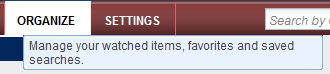
Tool tips
Tool tip help is available for most fields and command buttons. Hover over a field or button to view a brief description of the item. View an example?
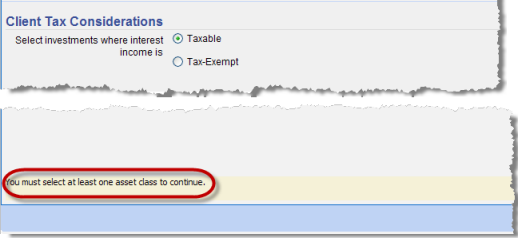
Tips
Tips provide suggestions on how to complete a field or perform a function. A tip link may appear next to an entry field or text may appear at the bottom a page and change as you access different areas of an application page. You can optionally hide tips. View examples?
Context-sensitive
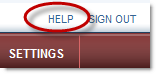
online help is available for most application pages by clicking the
Help icon ( ).
This is the most comprehensive help available for a user. You can also
access online help from the header of the application by clicking the
Help link in the upper right corner
of an application page. View an
example?
).
This is the most comprehensive help available for a user. You can also
access online help from the header of the application by clicking the
Help link in the upper right corner
of an application page. View an
example?
 |
Context-sensitive help is not available for overlays and dialog boxes. It is likely, however, that a help topic exists for an overlay or dialog box. Use the online help table of contents, index, and search features to find additional information. |